Connecting Pipedrive to Surfe makes it easy to transfer contact information into your CRM directly from LinkedIn. You can manage your Pipedrive data with Surfe, streamline your workflow and reduce manual data entry.
Surfe now uses your email address to log you in to the web app. You no longer need to log in through your CRM to access Surfe. You can create your account and join your team before connecting Pipedrive.
1. Log in to Surfe
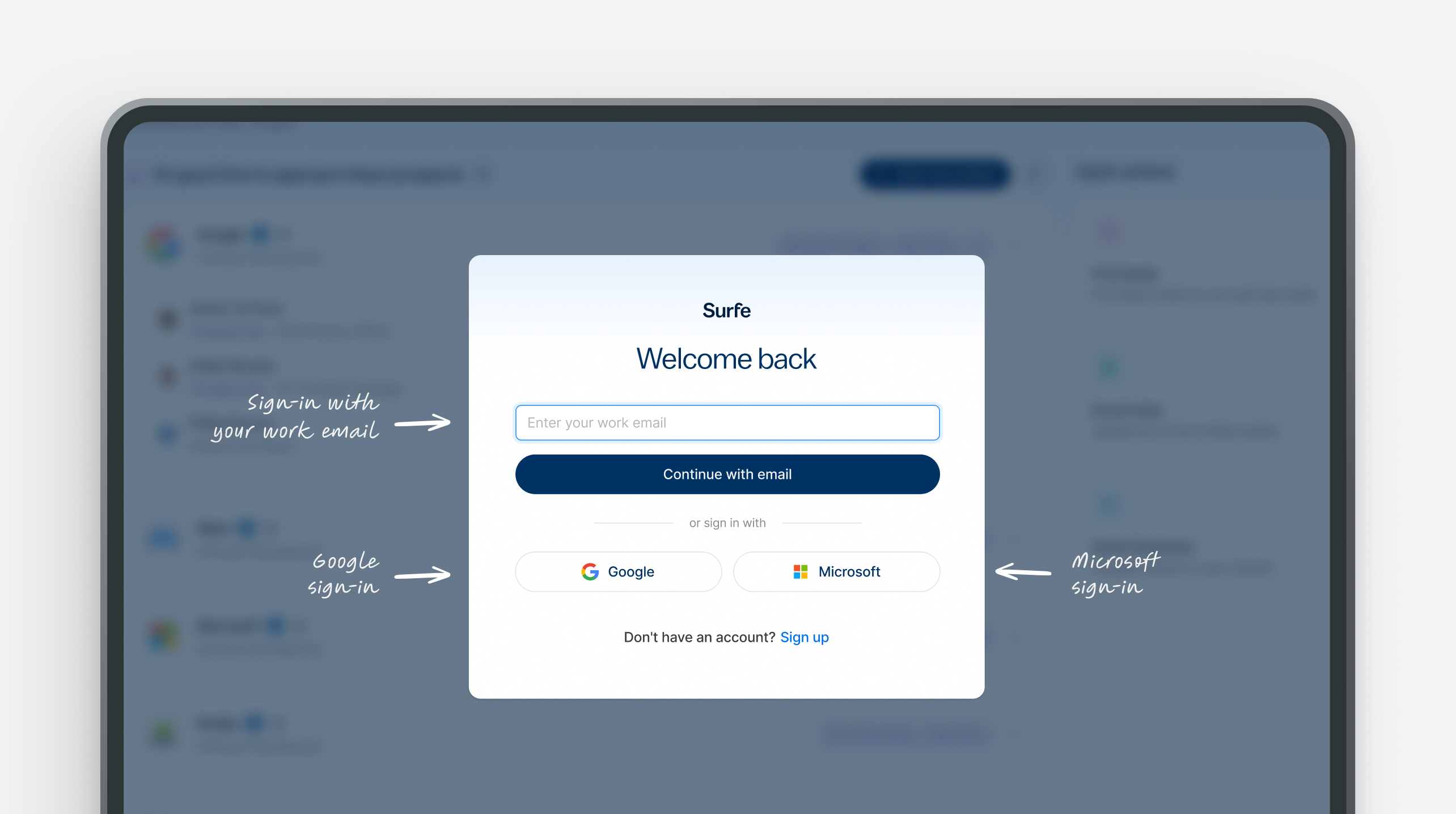
Go to app.surfe.com or open your Surfe Side Panel and enter the email address associated with your Surfe account.
You can log in in three ways:
- Email verification: Enter your email address and use the 6-digit code sent to your inbox.
- Google: Continue with your Google account using the same email address.
- Microsoft: Continue with your personal Microsoft account. Microsoft 365 work accounts should use email verification instead.
No CRM connection is required to log in.
2. Join your team
Surfe recognizes your existing account using your email address. You'll find your existing workspace, teammates, settings, billing and CRM connection.
If one or more teams are found, you'll see them listed in the Side Panel. Find your company workspace and click Join to access it.
If you're associated with multiple workspaces, you can choose which one to join.
Don't see your company workspace?
Make sure you're using your company email address. If the workspace still doesn't appear, contact your Surfe administrator or our Support Team.
Note: Joining a workspace doesn't automatically assign you a licence. If no licence is assigned to you, ask your administrator to assign one.
3. Connect Pipedrive to Surfe
Once you're in your workspace, you can connect Pipedrive.
- Open your Surfe Side Panel or try to Add a contact to your CRM.
-
Click Connect a CRM.
-
Select Pipedrive from the list of available CRMs.
- Follow the on-screen instructions to authorise the connection.
- Log in to your Pipedrive account if prompted and grant the required permissions.
Once the connection is complete, you can start using Surfe with Pipedrive.
Important: The Pipedrive Global Admin must connect first
For Pipedrive workspaces, Surfe requires the CRM's Global Admin to be the first person to connect.
If you're asked to have an administrator connect Pipedrive first, contact your Pipedrive Global Admin and ask them to complete the connection.
Once the initial connection is set up, other team members can connect according to their permissions.
Haven't connected a CRM yet?
No problem! You can still use Surfe without a CRM connection.
However, if you try to sync a contact to Pipedrive, a pop-up will prompt you to connect a CRM. Simply follow the instructions in the pop-up to connect Pipedrive and continue syncing your contact.
What if I'm already logged in?
If you're already logged in to Surfe, you don't need to do anything. You can continue working as usual. The new login process will apply the next time you log out or your session expires.
Having trouble connecting Pipedrive?
If you're unable to connect:
- Check that you're using the correct Pipedrive account.
- Make sure your Pipedrive Global Admin has completed the initial connection.
- Check that you have the necessary permissions to authorise the connection.
If you're still having trouble, contact your Pipedrive administrator or our Support Team via live chat or at support@surfe.com.
Comments
0 comments
Please sign in to leave a comment.